Dashboard
Who can edit this feature?
- Admins
Dashboard is a powerful and adaptable tool designed to offer you a detailed overview of your performance metrics, progress, and gamified elements. Customizable to suit the unique needs of any business, this dashboard integrates real-time data and visual indicators to boost your engagement and productivity.
Key Features
Customizable Layout
- Tailored Experience: Arrange widgets and elements to match your workflow and preferences. The layout can be adjusted to meet your specific requirements.
- Workspace-Specific Views: Create distinct dashboard views for different workspaces, ensuring everyone has access to the information they need.
Real-Time Data Integration
- Live Updates: Connect seamlessly with your data sources to provide real-time updates, ensuring displayed information is always current and accurate.
- Automated Syncing: Automatically import data from your integrated sources, eliminating the need for manual entry.
Visual Metrics and KPIs
- Clear Visuals: Use graphs and progress bars to display key performance indicators (KPIs), making complex data easy to understand at a glance.
Personal and Team Goals
- Progress Tracking: Monitor both individual and team goals within the dashboard, with visual indicators showing progress toward targets.
- Milestones: Highlight progress with clearly marked milestones, encouraging continuous motivation and achievement.
Gamified Elements
- Points and Badges: Earn points and badges for completing tasks and reaching goals, making work more engaging and enjoyable.
- Leaderboards: Promote healthy competition with leaderboards that highlight top performers.
Customizable Avatars
- Personal Touch: Display a customizable avatar on the dashboard, allowing users to personalize their experience and reflect their personality or brand.
- Brand Consistency: Customize avatars to align with your company’s branding, enhancing the cohesive look and feel of your Company.
User-Friendly Interface
- Intuitive Navigation: Easily navigate the dashboard with its user-friendly design, suitable for users of all technical levels.
- Custom Themes: Personalize the dashboard’s color scheme, avatar, company logo, and widgets to align with your company’s branding, creating a cohesive and visually appealing workspace.
Adding Company logo
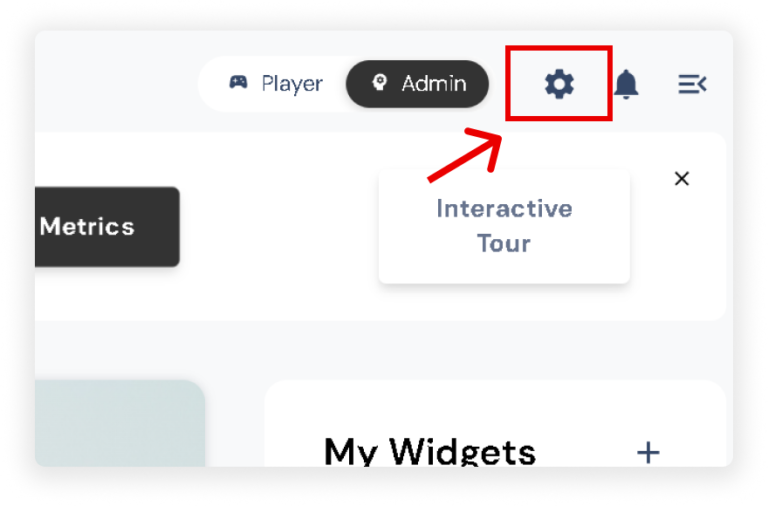
- Click the Settings icon in the upper right corner of your screen.
- A slider will appear showing the Customization Settings.
- On ‘Edit your Company Logo’ and click ‘Upload Logo’.
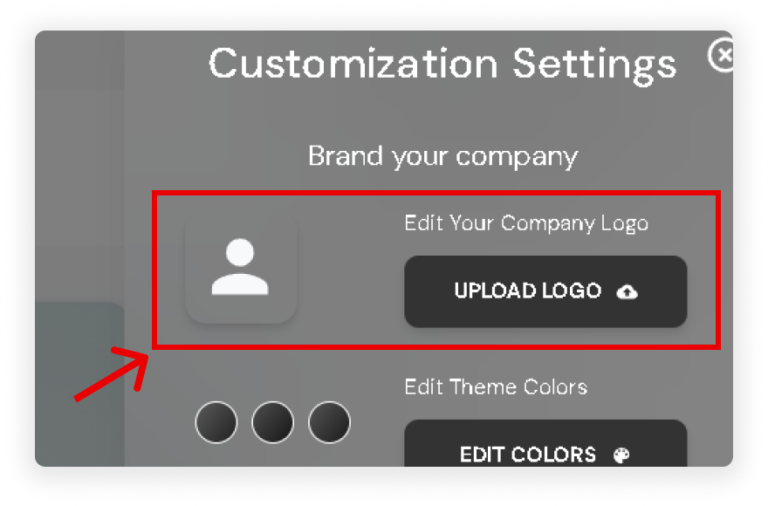
- Once uploaded, the logo will be displayed on your company profile, your avatar’s clothes, and the avatars of all players within your company.
Edit/Customize brand colors
- Click the Settings icon in the upper right corner of your screen.
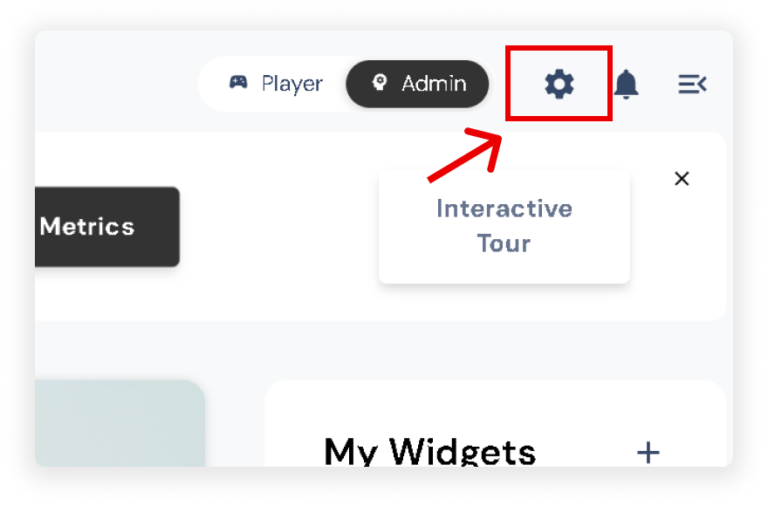
- A slider will appear showing the Customization Settings.
- On ‘Edit Theme Colors’ and click ‘Edit Colors’.
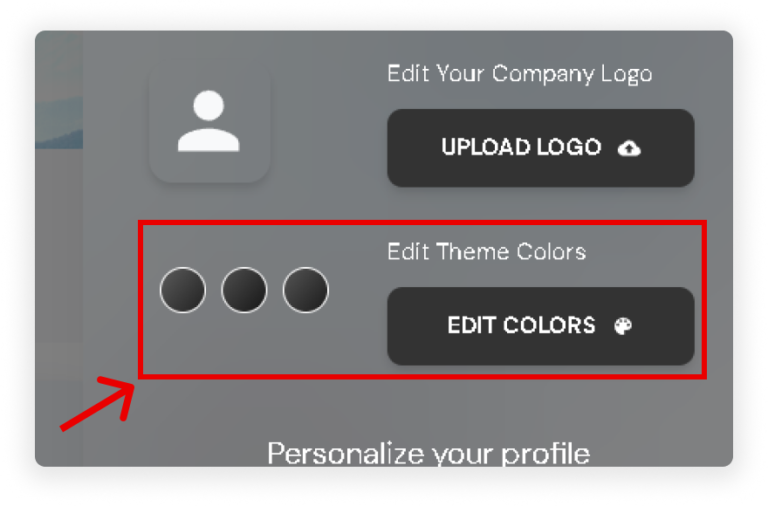
- Once you’ve made your changes, the new color scheme will be applied to your entire dashboard as well as the dashboards of all users in your company.
Switching between Player and Admin Side
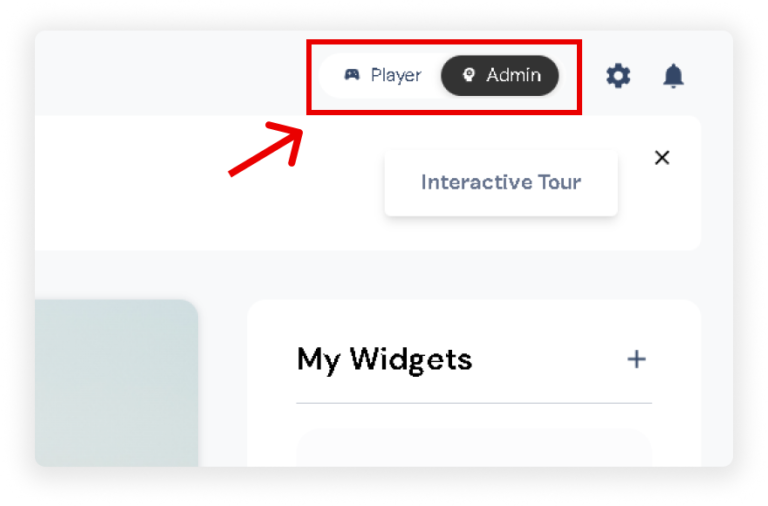
- Locate the toggle on the upper right side of your screen.
- Click the toggle to switch between the Admin Side and Player Side.