Metrics tracks performance, provides insight and enhances user engagement through data-driven decision-making. It helps monitor individual and team progress, ensuring goals are met efficiently.
Types of Metrics:
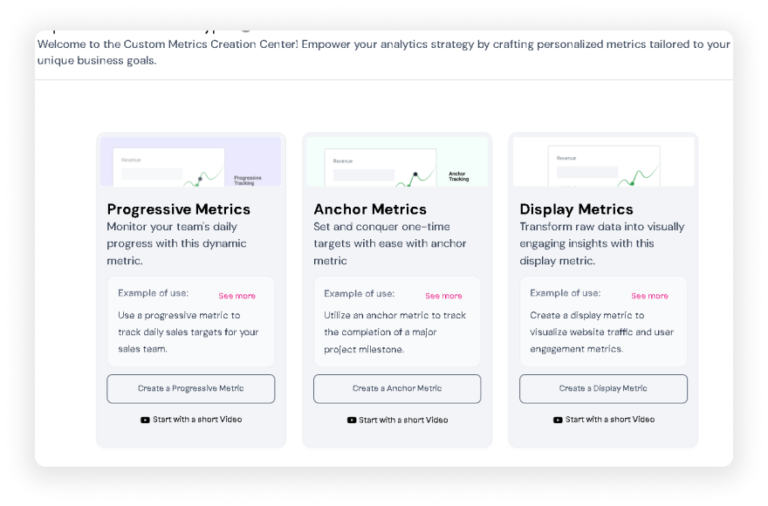
Progressive Metrics: Monitor your team’s daily progress with this dynamic metric.
Anchor Metrics: Set and conquer one-time targets with ease with anchor metrics.
Display Metrics: Transform raw data into visually engaging insights with this display metric.
Add/Create Metrics
There are two ways to add metrics in Game My Biz:
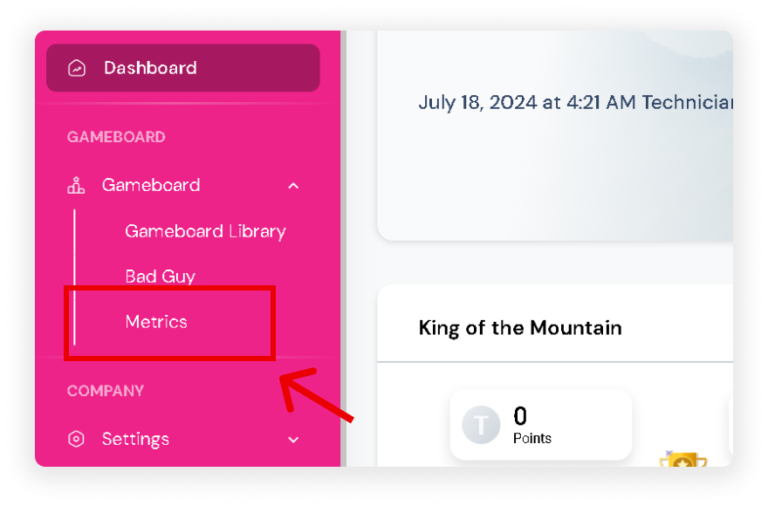
Method 1: 1. On the sidebar, click ‘Metrics’ in the Gameboard Section.
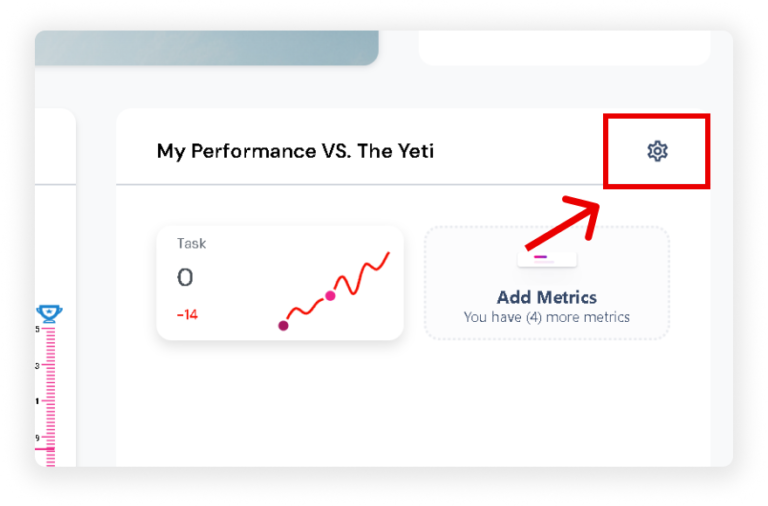
Method 2: 1. Click the settings icon next to ‘My performance VS. Yeti’.
Once you are in the Workspace KPI section, you have two options: ‘Instant Metrics’ or ‘Create Custom Metrics’.
Using Instant Metrics
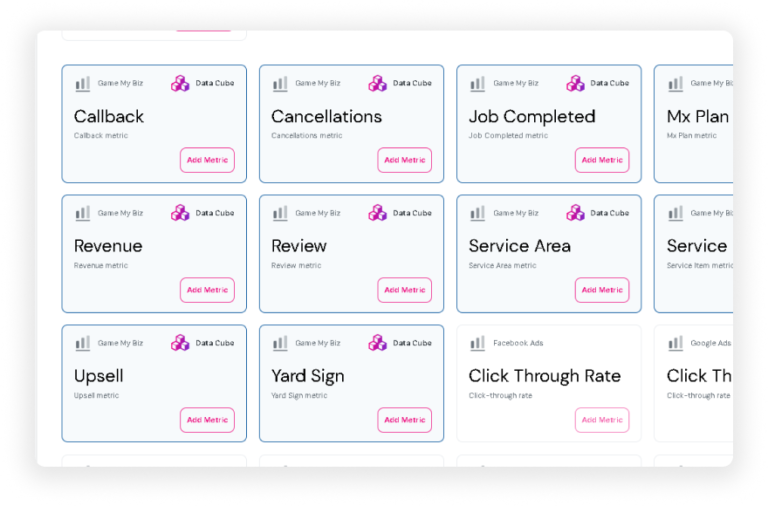
Scroll and choose instant metrics that align with your company.
Click the ‘Add Metric’ button on the specific metric you chose.
Creating Custom Metrics
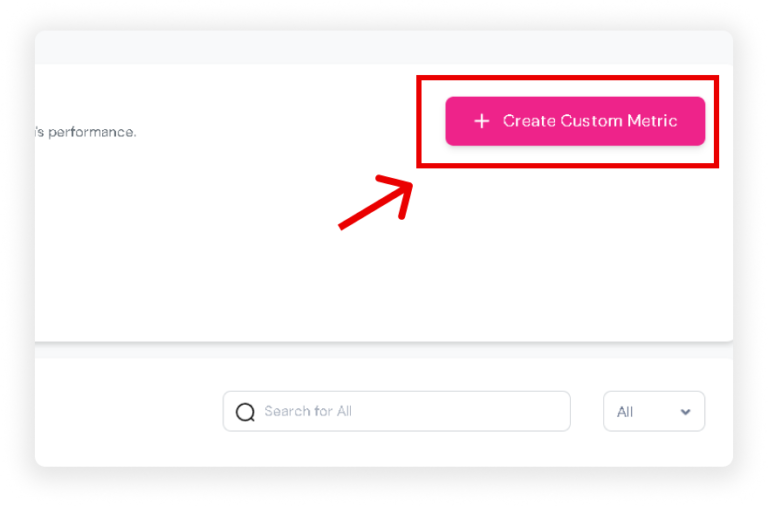
Click the ‘+ Create Custom Metric’ button in the upper right corner of your screen.
Choose the type of metric you want to use: There are 3 types of Metrics.
Progressive Metrics: Monitor your team’s daily progress with this dynamic metric.
Anchor Metrics: Set and conquer one-time targets with ease using anchor metrics.
Display Metrics: Transform raw data into visually engaging insights with this display metric.
Setting Up Your Custom Metric
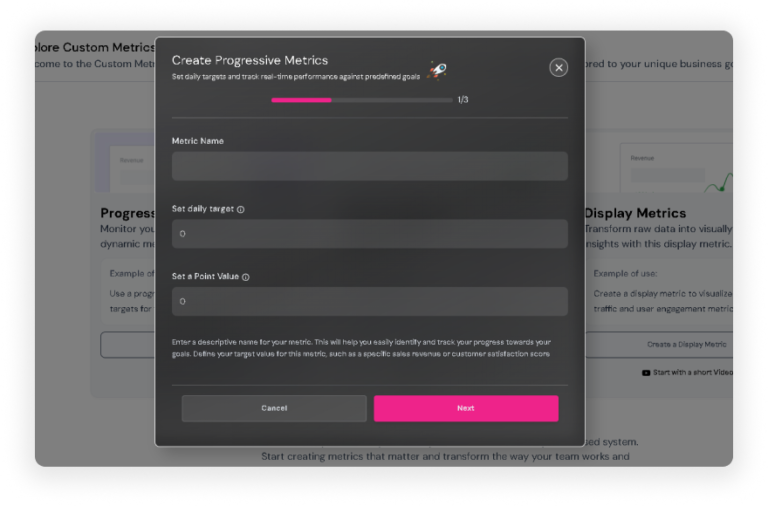
Fill out the required details:
Metric Name: Easily identify and track specific KPIs and goals.
Daily Target: Ensure progress tracking and help gauge performance and motivate achievements.
Point Value: Determine the scoring system of your goal, helping you track the right score and reward performance effectively.
Click the ‘Next’ button.
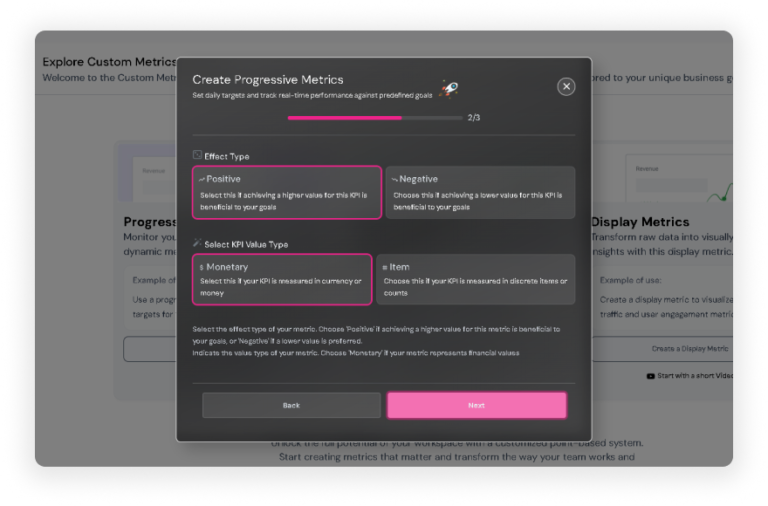
Select the effect type of your metric:
Positive: If achieving a higher value for this metric is beneficial to your goals.
Negative: If a lower value is preferred.
Indicate the value type of your metric:
Monetary: If your metric represents financial values.
Item: If your KPI is measured in discrete items or counts.
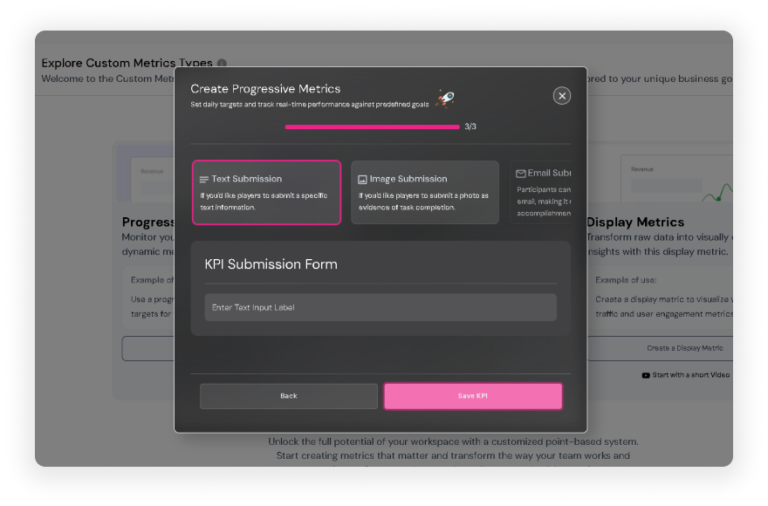
On the last page, choose the type of KPI that aligns with your company, such as Text Submission, Image Submission, Email Submission, and more. You can view additional options by sliding horizontally.
Click ‘Save KPI’. Your created KPI/Metric will now appear on your dashboard.
Edit Metrics
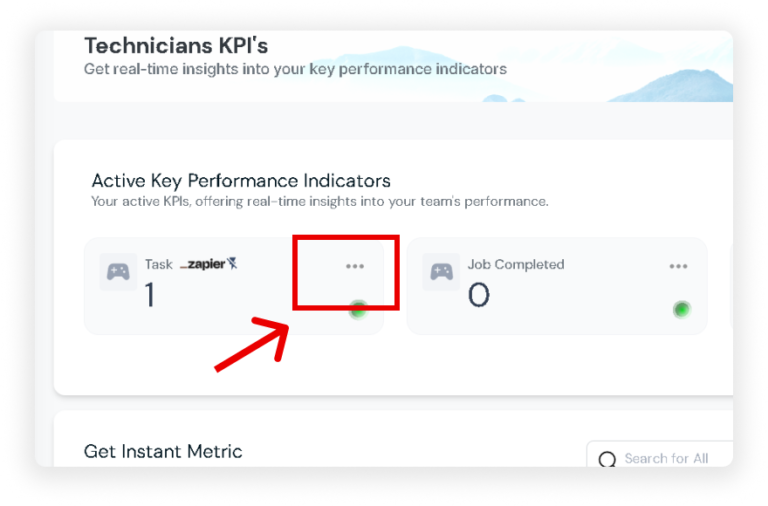
Navigate to Metrics > Active Key Performance Indicators.
Click the ‘⋮’ icon in the upper right corner of the card for the active metrics.