Widgets enhance dashboards by displaying important information and metrics in real-time.
They allow for:
Tracking KPIs: Monitoring key performance indicators directly from the dashboard.
Progress Monitoring: Viewing the advancement of projects and goals at a glance.
Data Access: Quickly access critical data, such as performance metrics and personal goals.
Widgets are customizable, enabling them to display specific information needed, thereby helping users stay informed and make data-driven decisions efficiently.
Add Widgets
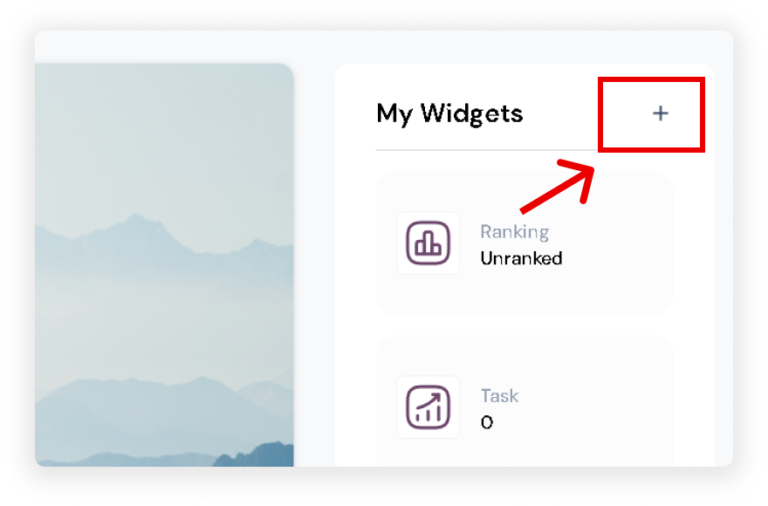
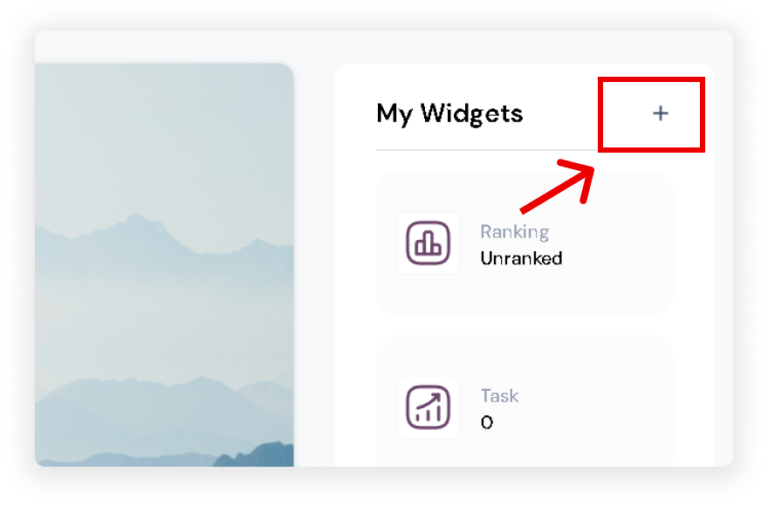
On the ‘My Widgets‘ card in the upper right corner of your screen, click the ‘+’ icon.
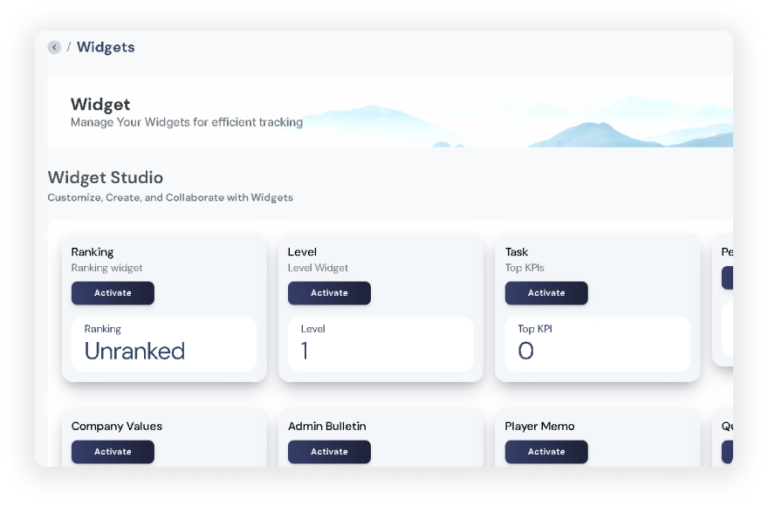
You will be redirected to the Widgets Studio, displaying all available widgets within Game My Biz.
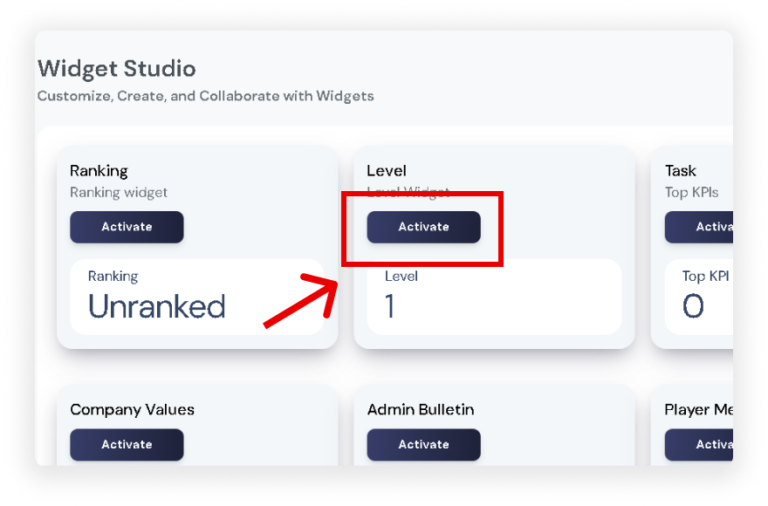
Click the ‘Activate’ button on the widget you choose.
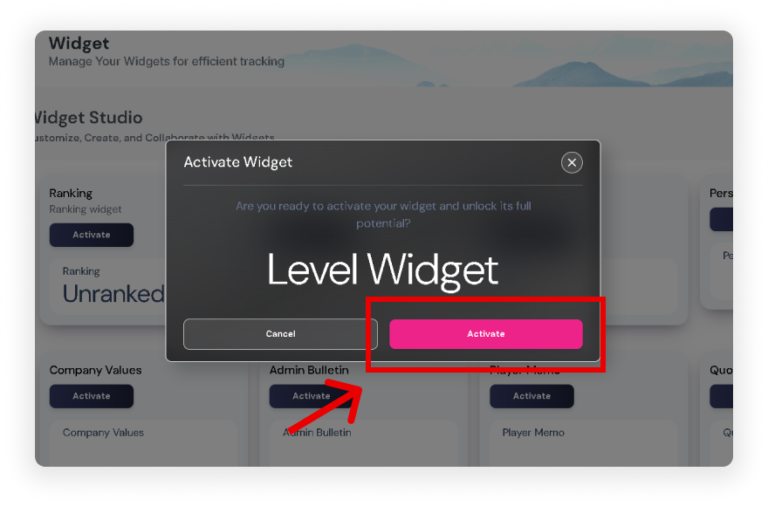
Depending on the widget selected, a pop-up may appear with additional configuration options. Fill out the required details.
Once done, click the ‘Activate’ button, and the widgets will now be visible on your dashboard.
You can set at least 3 widgets.
Edit Widgets
On the ‘My Widgets’ card in the upper right corner of your screen, click the ‘+’ icon.
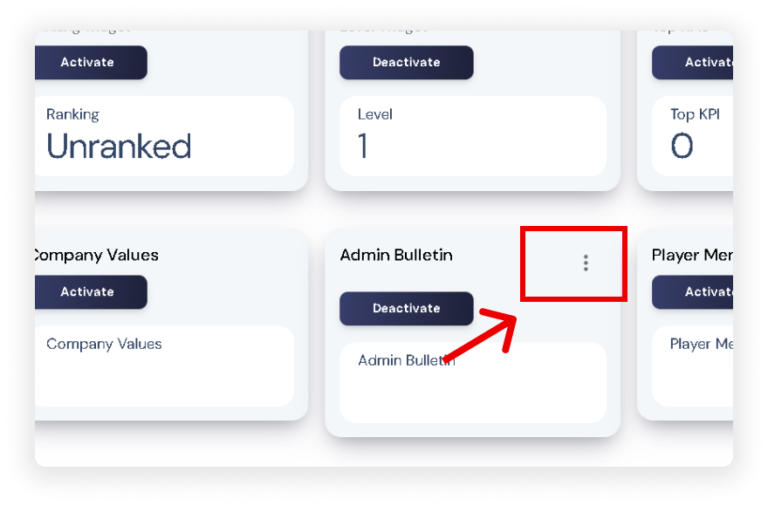
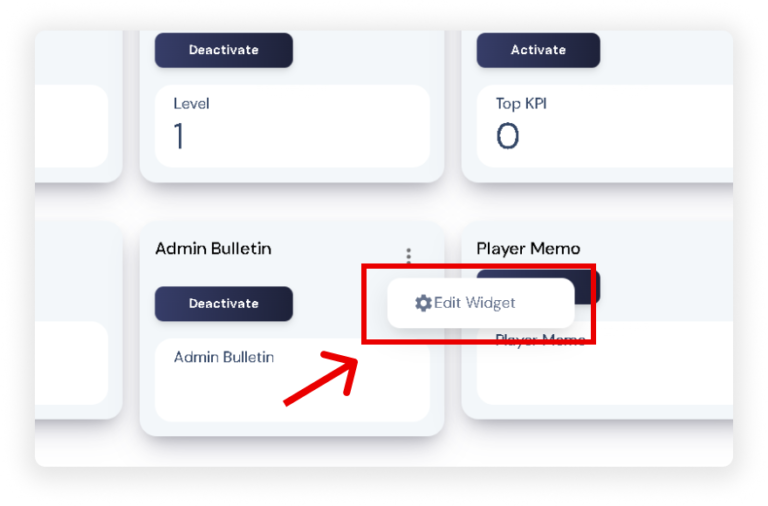
You will be redirected to the Widgets Studio, Click the ‘ ⋮ ‘ on the active widget and select ‘Edit Widget’.
A pop-up will appear, allowing you to edit the content of your widget.
Note: Some widgets may not have an edit option available.
Remove/Deactivate Widgets
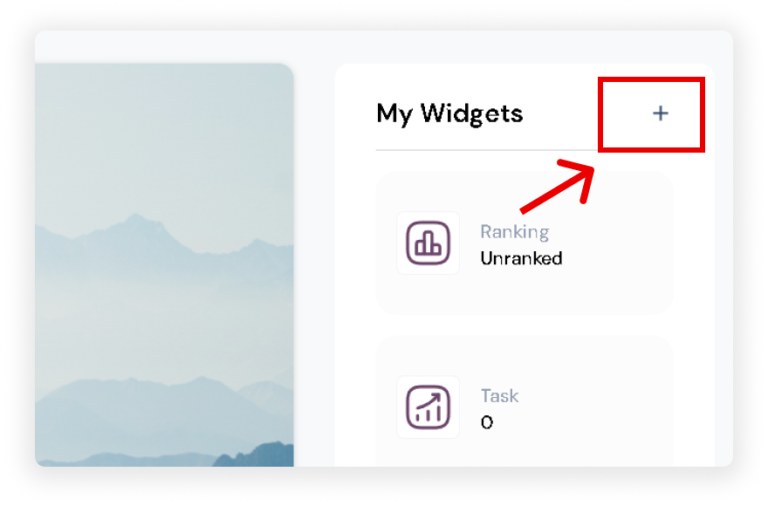
To remove or deactivate a widget, click the ‘+’ icon on the ‘My Widgets’ card.
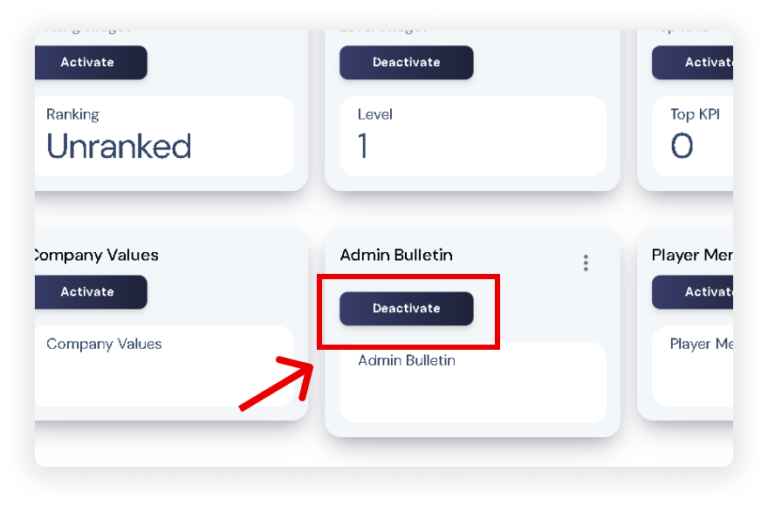
You will be redirected to the Widgets Studio, where you will see all your active widgets.
Click the ‘Deactivate’ button on the widget you wish to remove.