Workspace provides a dedicated environment for teams to collaborate and track progress. It allows users to organize tasks, set goals, and monitor performance within a specific group. Each workspace can be customized with its own metrics and widgets, ensuring that the tools and data are relevant to the team’s objectives. This feature enhances productivity and focus by providing a structured space tailored to the needs of each team or department.
Adding/Create workspaces
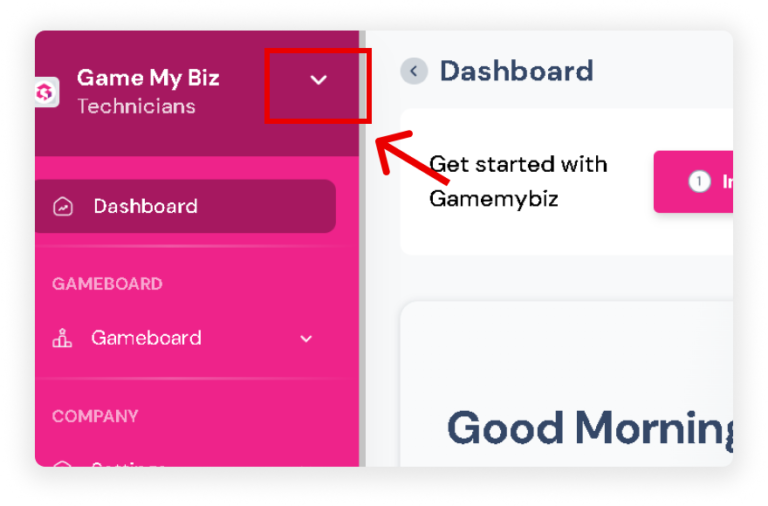
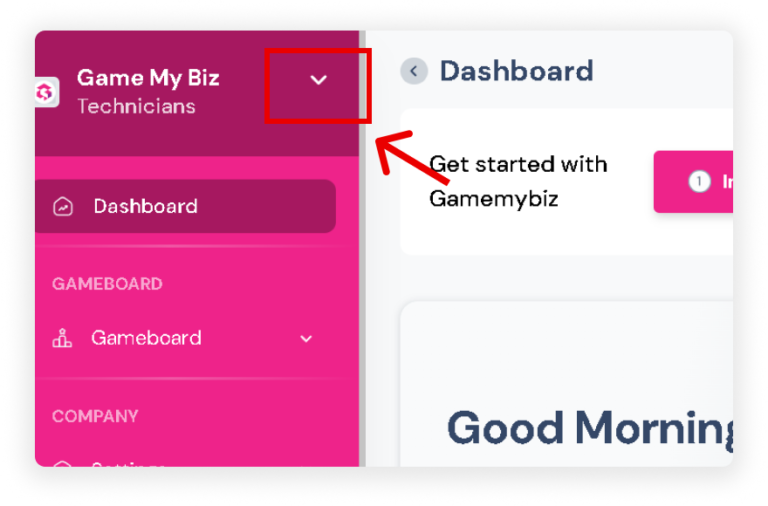
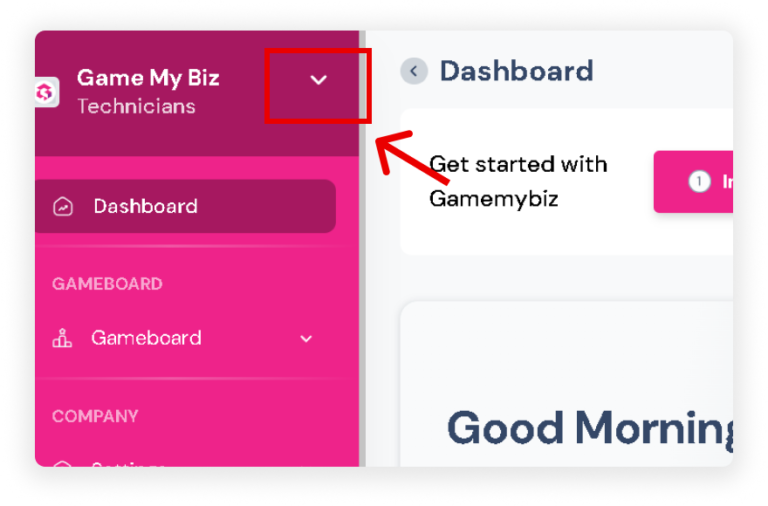
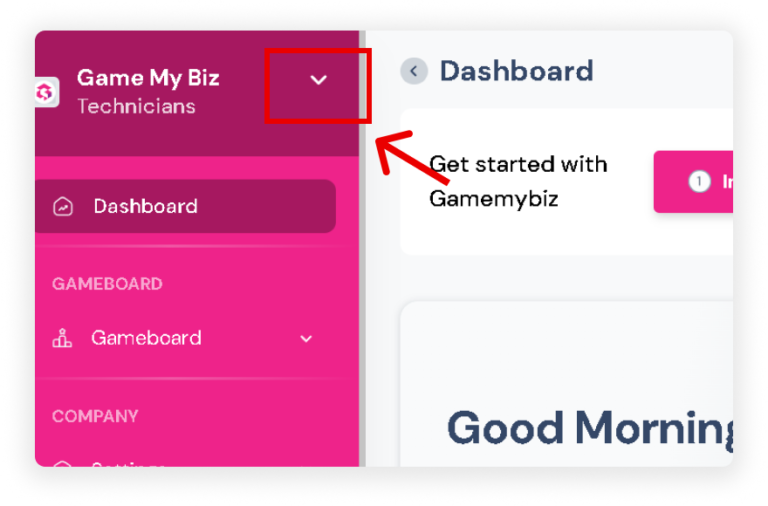
Click the Dropdown Arrow on your sidebar.
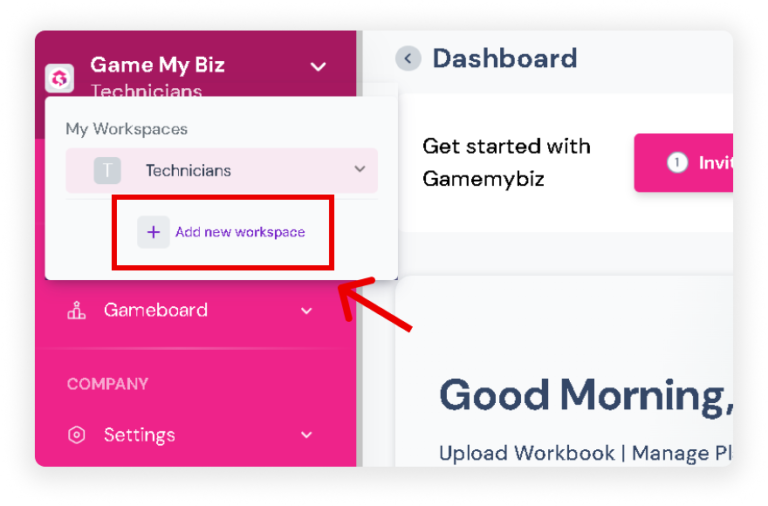
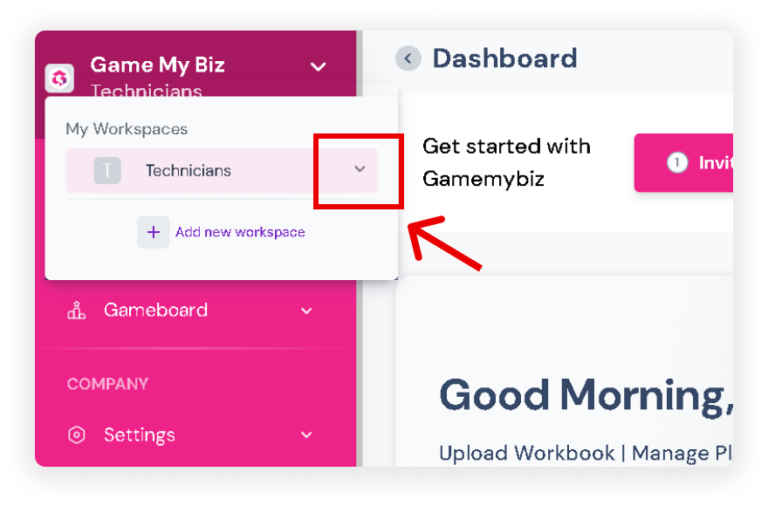
Select ‘+ Add New Workspace’.
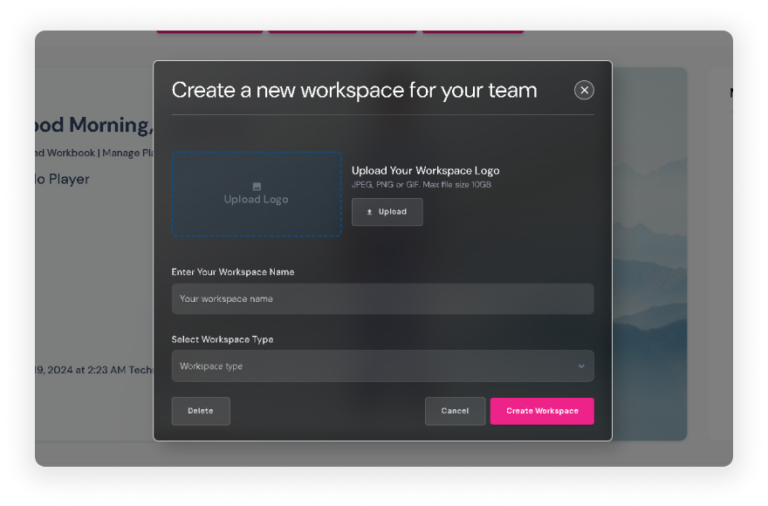
A popup will appear where you can enter details such as the Workspace name and type.
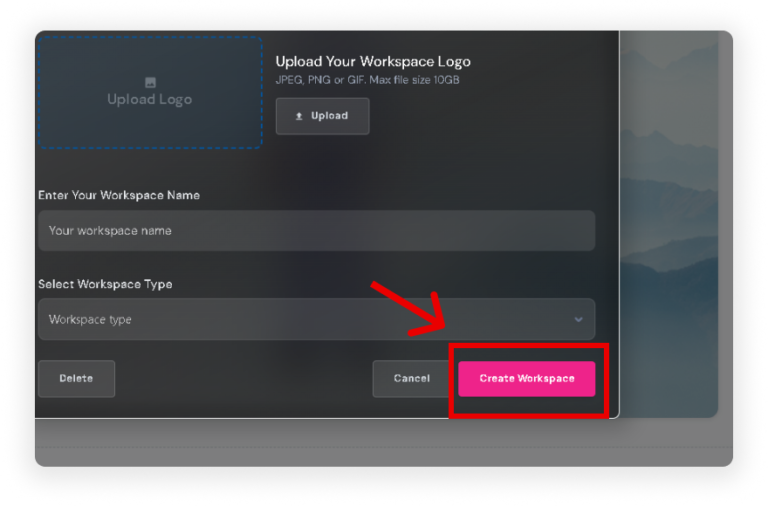
Click ‘Create Workspace’ once you have filled out the required information.
Adding/Create a Sub-workspace
Click the Dropdown Arrow in the upper left corner of your screen to display the list of workspaces.
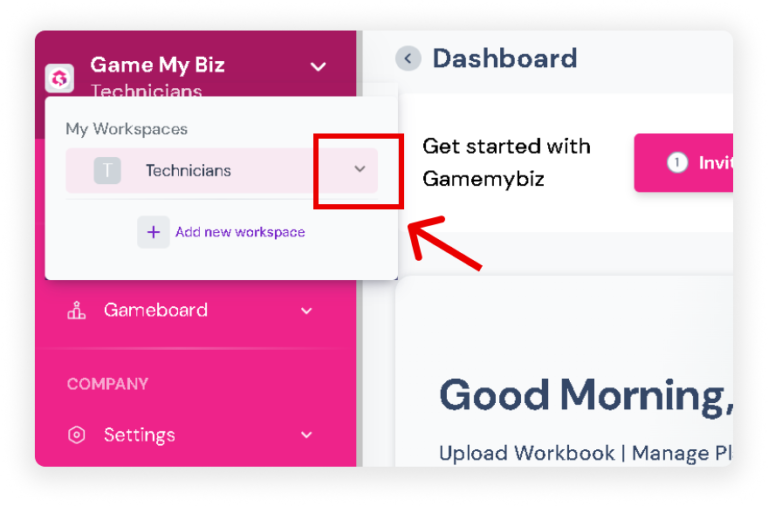
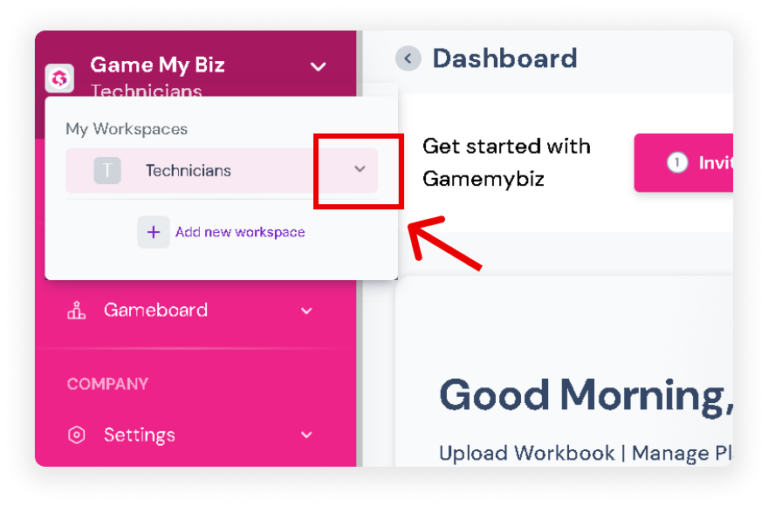
Click the Dropdown Arrow next to the workspace name where you want to add a sub-workspace.
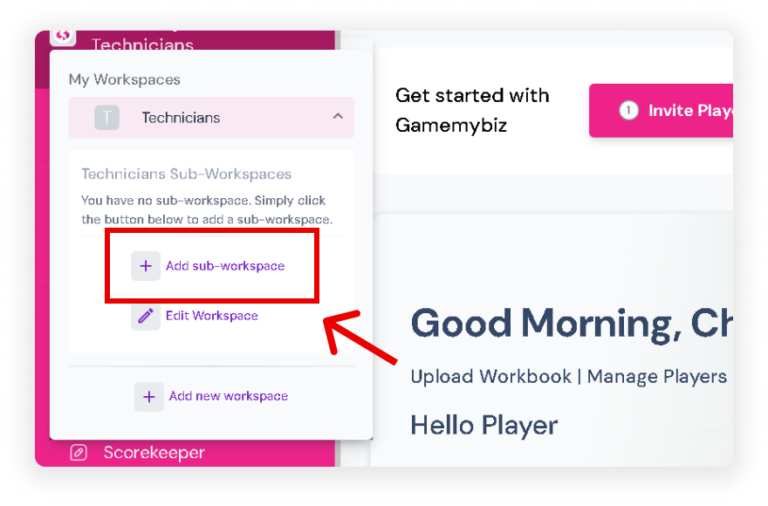
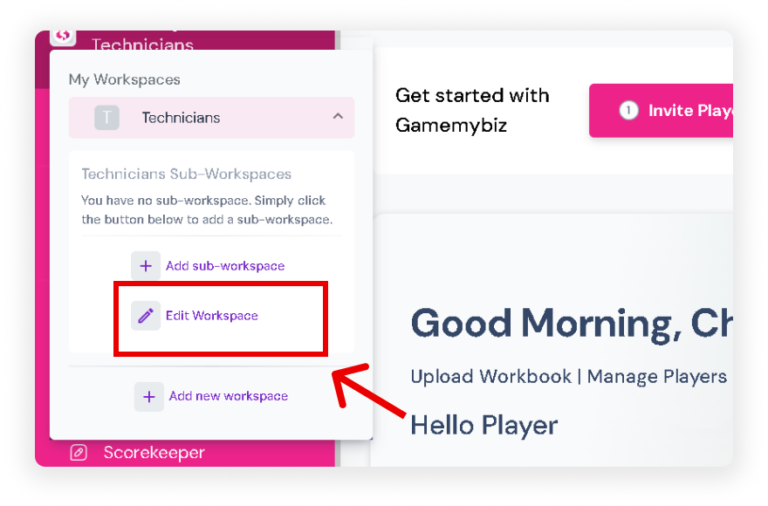
Click the ‘Add sub-workspace‘ button.
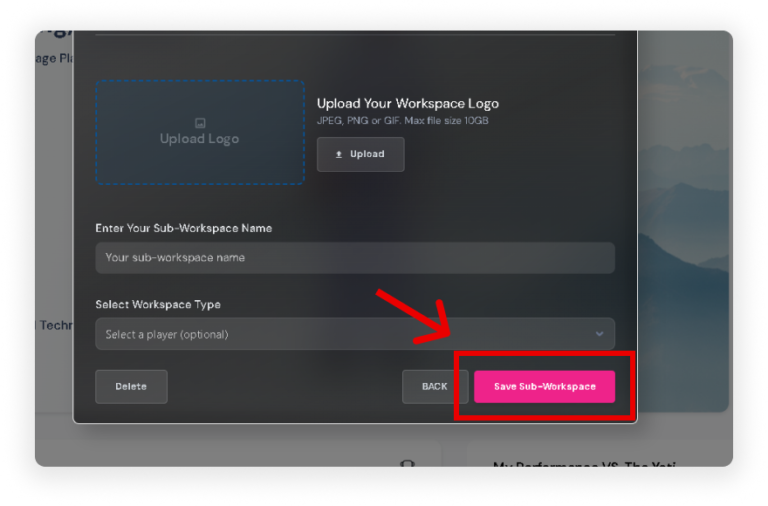
A pop-up will appear where you can fill in the necessary details. Once done, click ‘Save Sub-Workspace’ to create the sub-workspace.
Edit workspace
Click the Dropdown Arrow in the upper left corner of your screen to display a list of workspaces.
Click the Dropdown Arrow next to the workspace name where you want to edit.
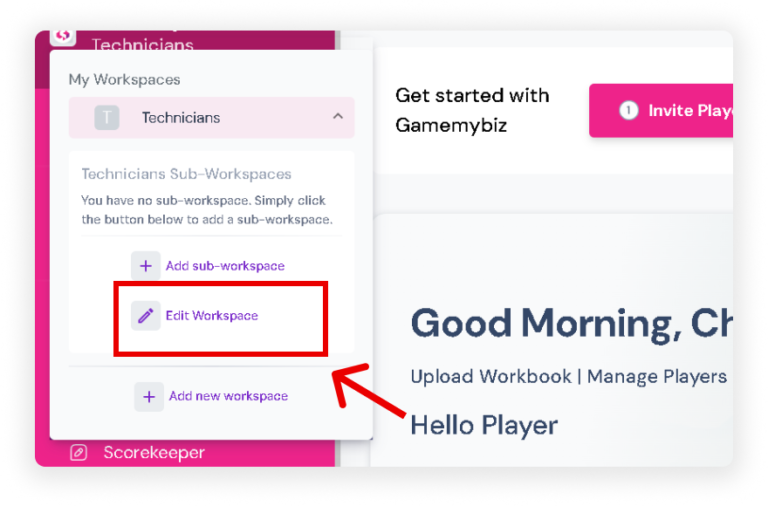
Then, click the ‘Edit Workspace’ button.
Move to a different workspace
‘Click the Dropdown Arrow in the upper left corner of your screen to display a list of workspaces.
Select the workspace you want to navigate to.
Invite/Assign Player/Employee in a Workspace
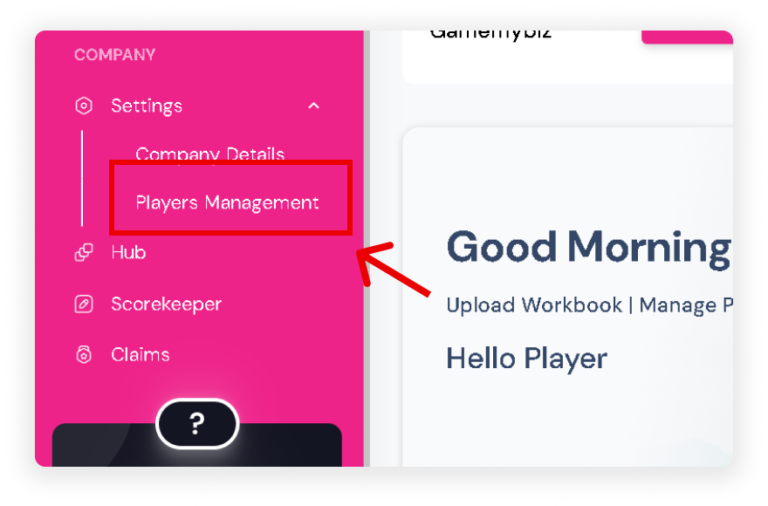
On your sidebar, click ‘Players Management’ under the Settings dropdown.
Search for the player or employee you want to assign.
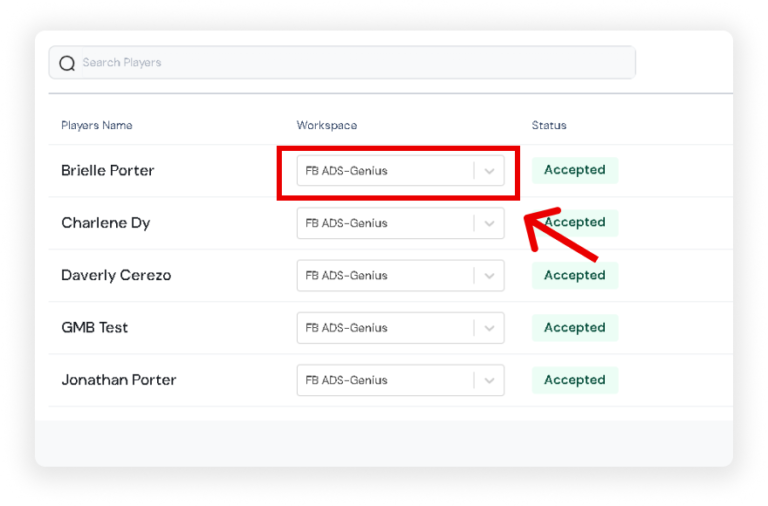
Once their name appears, go to the Workspace column and select the workspace you want to assign them to.
Delete Workspace
Click the Dropdown Arrow in the upper left corner of your screen to display a list of workspaces.
Click the Dropdown Arrow next to the workspace name you want to delete.
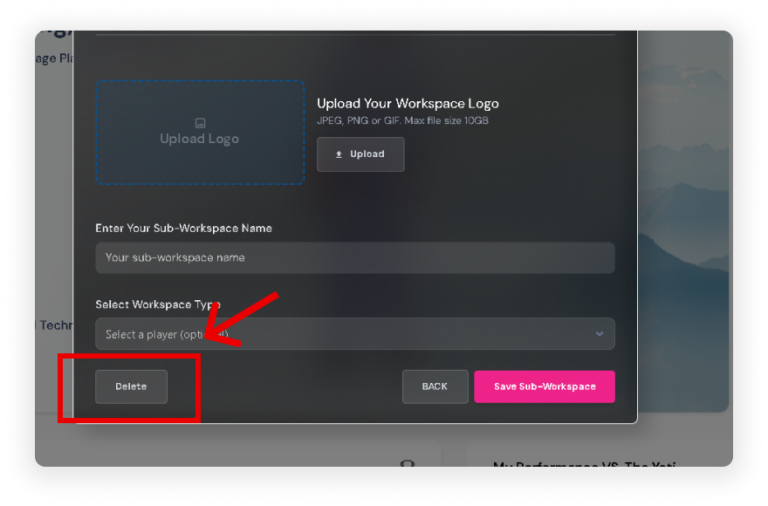
Click the ‘Edit Workspace’ button.
Click the ‘Delete’ button to remove the workspace.